
Blueberry - Online Documentation.
Welcome to the documentation for the Blueberry theme! This page will guide you on how to use and customize the theme to suit your needs.
Support hours
Monday – Friday (excluding Indian public holidays)
09:30 – 18:30 IST (Indian Standard Time)
Our support includes bug fixes and answering questions related to theme settings and existing features.
Our support does not cover assistance for
- Integrating third-party apps
- Development of new features
- Any changes in the theme design structures
- Adding new theme settings
- Fixing issues caused by third-party developers or apps. (For these changes, please contact Shopify experts.)
Note*: Before installing the Blueberry theme, please unzip "Blueberry - Grocery Store & Supermarket Shopify Theme OS 2.0.zip" and upload the "Blueberry.zip" file to Shopify to avoid the "layout/theme.liquid" missing template error.
Download Blueberry - Grocery Store & Supermarket Shopify Theme OS 2.0.zip
To download Blueberry from Themeforest, please follow these steps:
Step 1: Login to Themeforest => Click to Profile icon and select Downloads
Step 2: Select Blueberry item from your Downloads list, Click to Download button => All files and documentation
1. Install Blueberry
1.1 Unzip Blueberry package
After downloading the Blueberry theme from Themeforest.net, please extract the file using the following steps
1.1.1. Right-click on the theme zip file you have just downloaded.
1.1.2. Unzip this file and open it

1.2. Install Blueberry to your store
Step 1: From your admin, click to Online store => Themes => Import Theme => Upload zip file
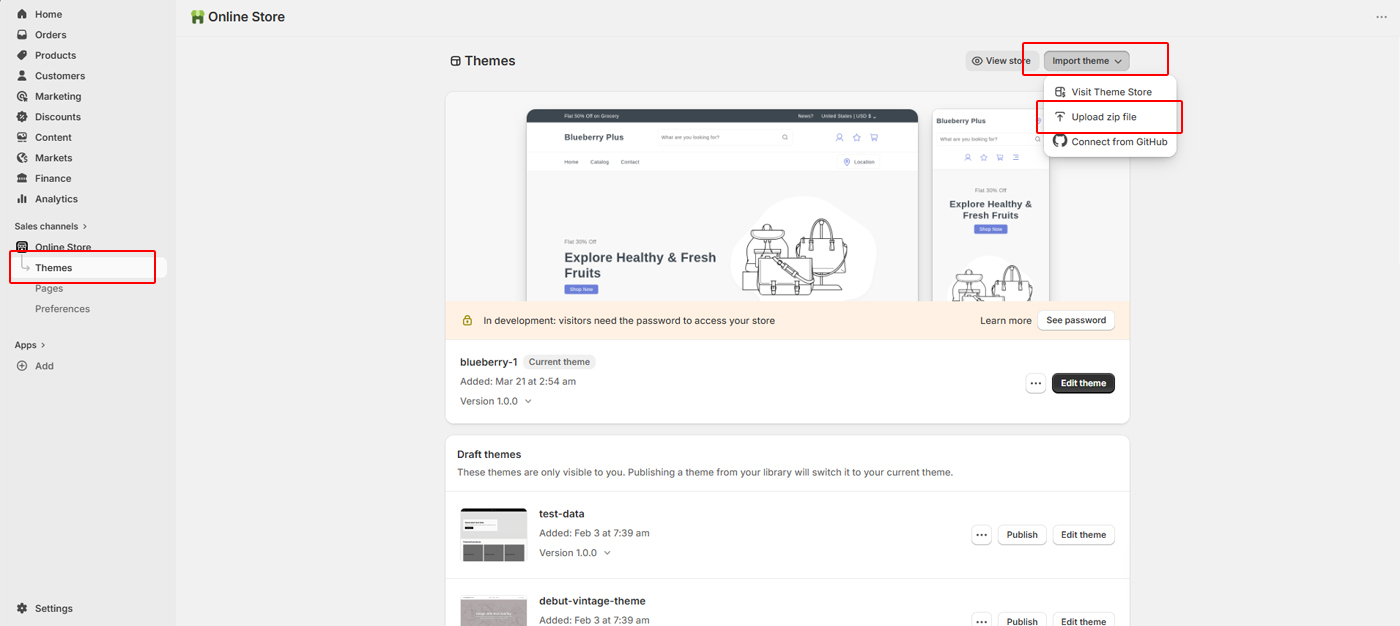
Step 2: Click to Add file
Step 3: Select file Blueberry.zip zip file and click to Upload file
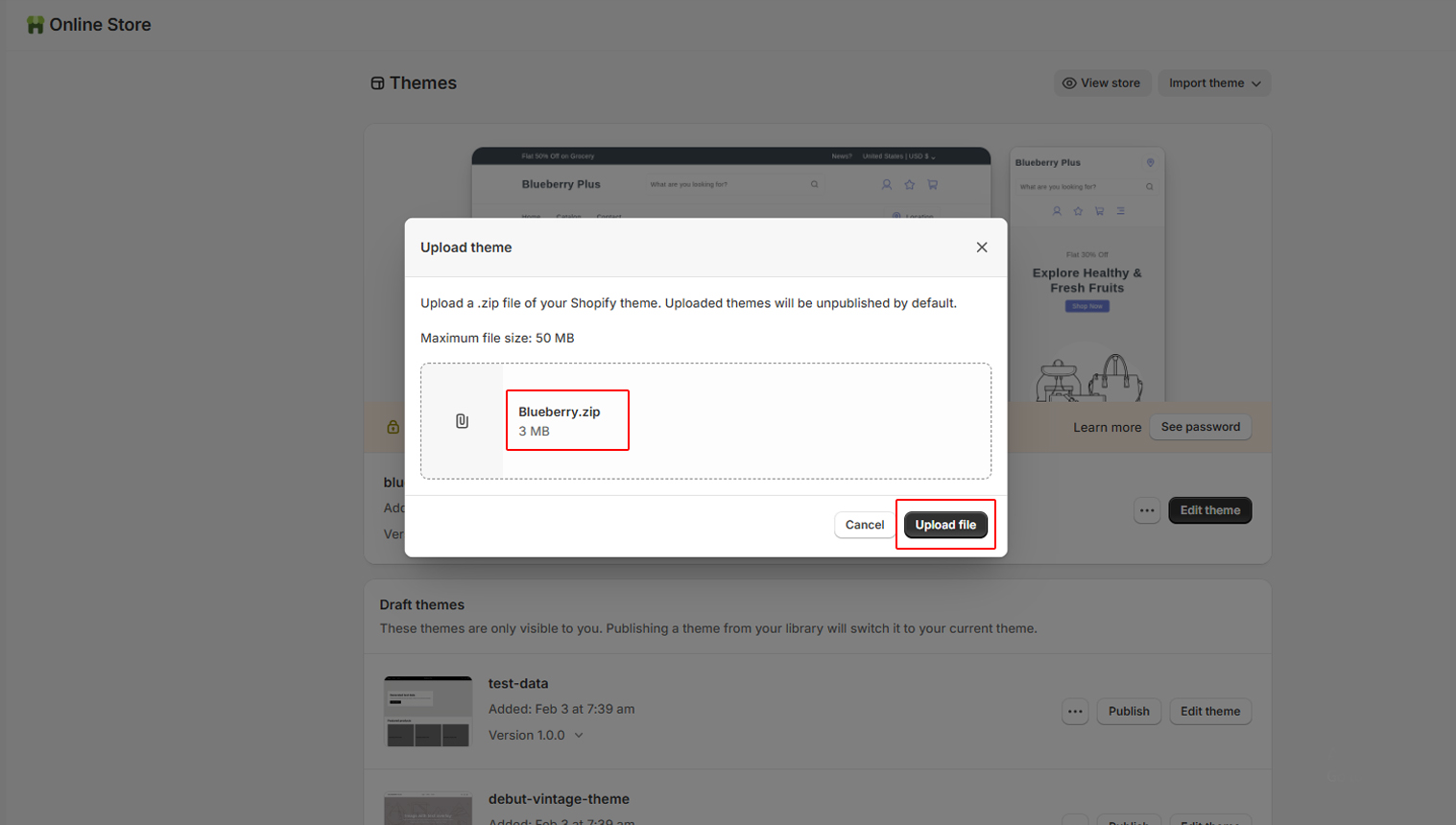
Step 4: Click on Publish Button

According to Shopify, after installing Blueberry, You will get a theme with placeholder images. You can upload your own images to decorate your store base on Blueberry layout.
For general guidance with modifying sections, refer to Shopify help: Sections and blocks.